
Thinkpad E14 Gen2: Linux setup
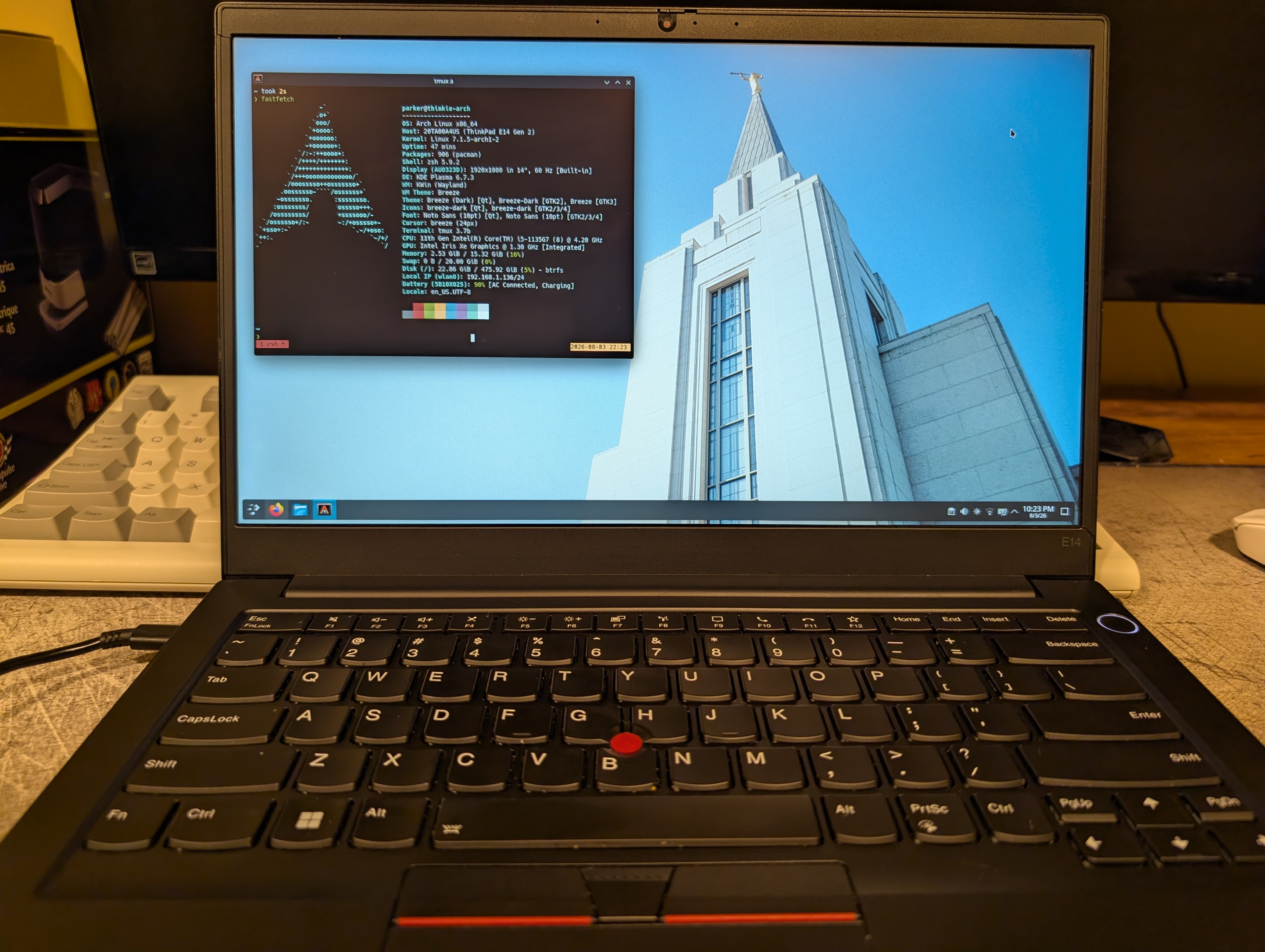
Some common fixes for issues I’ve ran into with Arch Linux on the Thinkpad E14 Gen2, regarding hibernate and sleep. This guide assumes you are using BTRFS and the grub bootloader.
Fixing unresponsive trackpoint after waking from sleep/hibernate
Edit: /usr/lib/systemd/system-sleep/10-trackpoint-reload.sh
#!bin/sh
case $1/$2 in
  post/*)
    # Reload input drivers after waking from sleep or hibernate
    /usr/sbin/modprobe -r elan_i2c psmouse
    /usr/bin/sleep 0.5
    /usr/sbin/modprobe psmouse elan_i2c
    ;;
esac
Make sure it’s an executable: sudo chmod +x /usr/lib/systemd/system-sleep/10-trackpoint-reload.sh. And it should work!
System hibernation
Create the swap btrfs subvolume if it doesn’t exist already.
sudo mkdir -p /mnt/btrfs-root
sudo mount -o subvolid=5 /dev/mapper/root /mnt/btrfs-root
sudo btrfs subvolume create /mnt/btrfs-root/@swap
sudo umount /mnt/btrfs-root
sudo rm -rf /mnt/btrfs-root
Append the following to /etc/fstab:
# BTRFS Swap Subvolume
UUID=[YOUR_BTRFS_ROOT_UUID] /swap	btrfs	subvol=@swap,nodatacow,noatime	0	0

# Hibernation swapfile
/swap/swapfile none swap defaults 0 0
Create the swapfile used for system hibernation. Please note: I use a swap size of 16G, which matches my total size of RAM. Ensure to use your RAM size.
sudo systemctl daemon-reload
sudo mkdir -p /swap
sudo mount /swap
sudo truncate -s 0 /swap/swapfile
sudo chattr +c /swap/swapfile
sudo btrfs property set /swap/swapfile compression none
sudo fallocate -l 16G /swap/swapfile
sudo chmod 600 /swap/swapfile
sudo mkswap /swap/swapfile
sudo swapon /swap/swapfile
Inspect the swapfile to find underlying offset:
sudo btrfs inspect-internal map-swapfile -r /swap/swapfile
Copy the value displayed, this value will be used for grub’s resume_offset to properly resume hibernate.
Edit /etc/default/grub and append the following attributes inside of GRUB_CMDLINE_LINUX_DEFAULT="":
resume=UUID=[YOUR_BTRFS_ROOT_UUID] resume_offset=[COPIED_SWAP_OFFSET_VALUE]
Regenerate the grub config to apply these changes.
sudo grub-mkconfig -o /boot/grub/grub.cfg
The final step is the mkinitcpio hook for resuming hibernation.
Edit /etc/mkinitcpio.conf inside of Hooks=() add resume. The order here matters, if you have an encrypted filesystem, place it after the encrypt hook. If not, you may place it between block and filesystems hooks.
Now apply these new settings:
sudo mkinitcpio -P
sudo reboot
You may now test hibernate by running: sudo systemctl hibernate
Deep sleep setup
Check if you already have deep sleep enabled:
cat /sys/power/mem_sleep
s2idle [deep] if deep has brackets around it like this, you already have deep sleep setup. If not, follow these steps below.
Enter into the BIOS. Under the power settings, set sleep mode to Linux S3.
Edit /etc/default/grub and inside of GRUB_CMDLINE_LINUX_DEFAULT="" add mem_sleep_default=deep.
Reboot your system and follow the first step again to ensure deep sleep is properly enabled.
Fix broken sleep/hibernate recovery
I’ve found that there are times that the Thinkpad enters sleep/hibernate mode and is unable to recover from the state; I have to force the laptop off and turn it back on, which isn’t ideal. After digging through the system journal and with the help of AI I found the culprits.
Edit /etc/default/grub:
Add nvme_core.default_ps_max_latency_us=0 usbcore.autosuspend=-1 inside of the GRUB_CMDLINE_LINUX_DEFAULT="".
In my experience this solve my unable to wake issues.
Touchscreen driver fix
I’ve found that disabling the raydium driver restores both the touchscreen functionality of the display & fixes an issue when waking up from sleep where the display won’t activate. For those running into the same issue, these are the steps to fix it.
First, check if the driver is currently loaded and exists:
lsmod | grep raydium
If it does, then blacklist it:
echo "blacklist raydium_i2c_ts" | sudo tee /etc/modprobe.d/blacklist-raydium.conf
sudo mkinitcpio -P
You may now reboot; afterwards, check and see if the driver is loaded with the lsmod command. You’ll find that the touchscreen should work now!
Proper thermal throttling with throttled
The following only applies to the intel varient of the Thinkpad E14 Gen2.
Installation:
sudo pacman -S throttled
sudo systemctl enable --now throttled
Ensure that throttled has write access to MSR registers:
sudo modprobe msr
echo "msr" | sudo tee /etc/modules-load.d/msr.conf
Ensure it is running properly:
sudo python /usr/lib/throttled/throttled.py --monitor
Improved Linux fan control
I’ve found that the fans would never be pushed to 100% despite hitting high temps. The solution is to enable manual fan control and setup thinkfan.
Create the following module configuration file for manual fan control:
echo "options thinkpad_acpi fan_control=1" | sudo tee /etc/modprobe.d/99-thinkfan.conf
sudo mkinitcpio -P
To avoid having to reboot, reload the module to apply changes.
sudo modprobe -r thinkpad_acpi && sudo modprobe thinkpad_acpi
Verify that the manual control works, the following forces full fan-speed: echo "level disengaged" | sudo tee /proc/acpi/ibm/fan. To return to automatic speed: echo "level auto" | sudo tee /proc/acpi/ibm/fan.
If the manual fan control is functional, proceed to installing thinkfan.
sudo pacman -S lm_sensors
yay -S thinkfan
Create the thinkpad.conf configuration file /etc/thinkpad.conf:
sensors:
  - chip: coretemp-isa-0000
    ids: ["Package id 0"]

fans:
  - tpacpi: /proc/acpi/ibm/fan

levels:
  - [0, 0, 48]
  - [1, 44, 54]
  - [2, 50, 60]
  - [3, 56, 66]
  - [4, 62, 72]
  - [5, 68, 76]
  - [7, 72, 82]
  - ["level disengaged", 78, 32767]
Enable and start the service:
sudo systemctl enable --now thinkfan.service
sudo systemctl status thinkfan.service
Now with proper thermal handling and fan speeds you will get the most out of your Thinkpad experience on Linux!